Quick start, under two minutes
Build your first multi-video layout
- Copy a YouTube, Twitch, Kick, Vimeo or Dailymotion link and paste it into the box on the homepage.
- Paste a second URL, then switch to a two-column layout.
- Drag videos by the handle so the feed you care about sits top left.
- Leave audio running on one video and silence the others.
- Enter fullscreen once the arrangement is the way you want it.
Basic Video Controls
Controls available on each video
Remove Video
Click the X button to remove a video from the player
Drag Handle
Grab this to drag and reorder videos
Merge Videos
Click to merge this video with another video
Fullscreen
Enter fullscreen mode
Common Issues & Fixes
Troubleshooting steps based on frequent user setup problems
Video does not load
Confirm you pasted a full page URL from the source platform (not shortened tracking links). Then refresh and re-add.
Lag or buffering with many streams
Reduce active streams, lower source quality where possible, and switch to fewer columns to reduce GPU/CPU pressure.
Overlapping audio
Mute the secondary streams first, then unmute one source at a time to keep the commentary readable.
Fullscreen keeps exiting
Some browsers exit fullscreen on ESC or focus change. Re-enter fullscreen and avoid switching tabs during critical moments.
Platform-specific setup
Use the examples on this page, then read the platform guides linked in the footer.
Drag and Drop Features
How to organize your videos using drag and drop
Reordering Videos
Click and drag the grip handle (⋮⋮) on any video to reorder them. Videos arrange in a grid based on your column settings.
💡 Tip: Hover over a video to see the drag handle appear
Merging Videos
Click the merge button on any video to enter merge mode, then click another video to combine the two into a single container.
How it works: Click the merge button on a video, then click on another video to merge them. The two videos then share a vertical grid. You can combine up to 3 videos in one container.
💡 Tip: Press Escape to cancel merge mode at any time
Separating Videos
To separate a video from a merged container, click the unmerge button (✂️) on the specific video you want to separate. This will extract that video and create a new container for it, leaving the other videos in the original container.
Note: Single videos don't have an unmerge button since there's nothing to separate them from.
Repositioning Videos in Merged Containers
In merged containers with multiple videos, you can reposition individual videos using the left (←) and right (→) arrow buttons.
How it works: Click the left arrow to move a video one position to the left, or the right arrow to move it one position to the right. Videos will swap positions with the video in the target location.
💡 Tip: Videos at the far edges won't move further (no wrapping around)
Layout and Display Options
Customize how your videos are displayed
Column Settings
Use the column selector to choose how many videos display per row (1-6 columns). This affects both normal and fullscreen modes.
Fullscreen Modes
Fullscreen: Uses your browser's fullscreen API for true fullscreen experience
Window Fullscreen: Fills the browser window without going true fullscreen
Video Merging
Merging saves space. Merged videos share a vertical grid, which suits portrait clips.
Tips and Tricks
Ways to work faster once the grid is set up
Press ESC to exit fullscreen mode
Use the video history to re-add a video you watched earlier
Merged videos share a vertical grid, which suits portrait clips such as YouTube Shorts
Experiment with different column layouts to find what works best for your content
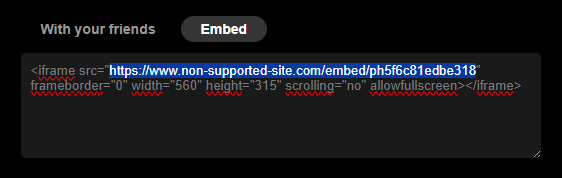
If a direct video link doesn't work, try using the embed URL from the video's share options
Common Issues
Solutions to common problems
Video not loading?
Try using the embed URL instead of the direct link. Look for "Share" or "Embed" options on the video page.
Drag and drop not working?
Make sure you're clicking and dragging the grip handle (⋮⋮), not the video itself. The handle appears on hover.
Can't merge videos?
Make sure you're clicking the merge button on the first video, then clicking on a different video to merge with it. You cannot merge a video with itself or merge more than 3 videos in one container. Press Escape to cancel merge mode if needed.